THE WRITTEN GUIDE
Follow the steps.
Use the video with the instructions below. All equipment actions described here refer to the simulator.
Define what the operator needs
Open Level 9 and read the HMI project requirements. List the screen’s operating information and permitted actions: status, start/stop requests, mode, setpoint and alarms. Organize the screen around the job instead of filling the canvas with decorative objects.
Place the screen objects
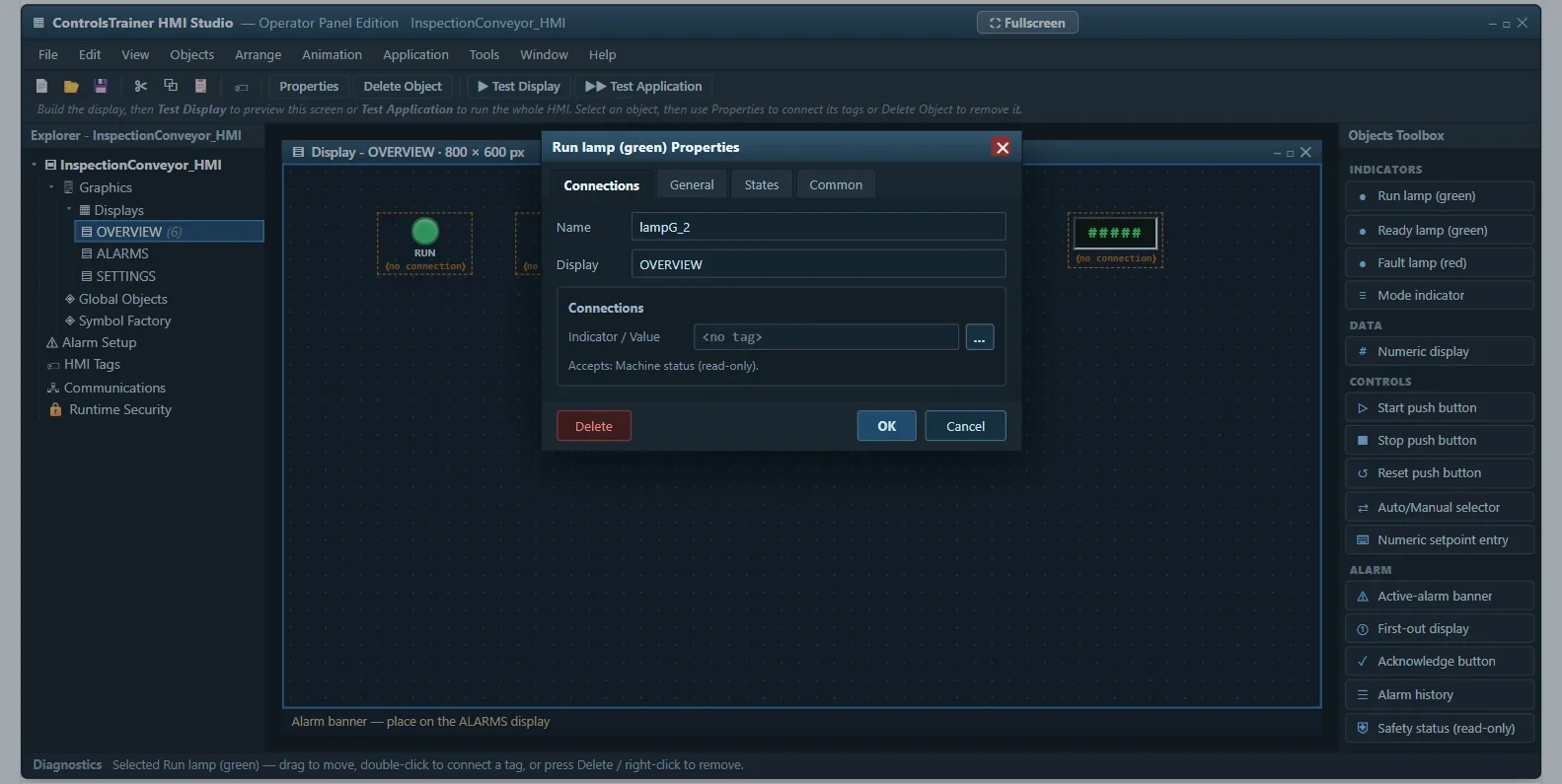
In HMI Studio, use the toolbox to add the required buttons, indicators and numeric displays. Keep related controls together and use readable labels. Choose an object and open its properties to configure the behavior. Use a consistent layout so the operator does not have to search for Stop or a fault indication.
Bind each object to the correct tag
A command button writes a request; an indicator reads a status value. Choose the appropriate PLC tag and data type in the object properties. Do not make a Run lamp merely mirror the Start request: the request is not proof of actual machine operation.
Complete the PLC handshake
The HMI and controller must agree on how requests are handled. Level 9 asks you to complete interface logic, including command handling, operating modes, setpoint checks and alarm behavior. The controller evaluates permissions and process conditions before acting on an HMI request.
Configure alarms and operating limits
Use the required alarm and first-out behavior so the operator can see what occurred. Acknowledgement records that the alarm was seen; it does not necessarily clear the cause. Validate setpoints and the requested operating mode. Keep safety decisions in the intended safety system, not in a screen button.
Test the application with the machine
Check and download the lesson project as directed, then run its acceptance tests. Try commands, status changes, limits and alarm acknowledgement. Observe both the screen and the machine response. Correct the tag binding or controller logic when they disagree.
A FEW USEFUL DISTINCTIONS
Common questions.
Do I need vendor HMI software?
The exercise runs in the site’s HMI Studio. It is a training editor, not a replacement for a manufacturer’s production HMI software.
What is HMI tag binding?
It connects a screen object to a named controller value. A button may write a request while a lamp reads a status bit.
Does acknowledging an alarm restart the machine?
It should not be treated as a restart command. The lesson distinguishes acknowledgement, fault conditions and the deliberate actions needed to run again.
Read the full video transcript
An HMI is the operator’s view of the machine. In this beginner tutorial, build the screen and connect it to the PLC in Controls Trainer Level Nine.
Start with the job. What must the operator see, and what are they allowed to request? Plan status indications, start and stop controls, operating mode, setpoint, and alarms.
Open HMI Studio. Place the required objects from the toolbox. Keep related information together and give every control a clear label. Open an object’s properties to configure its behavior.
Bind the object to the correct PLC tag. A button writes a request. An indicator reads status. A Start request does not prove the machine is running, so the Run lamp needs the appropriate status value.
Complete the interface logic in the controller. The PLC checks permissions, operating mode, and fault conditions before it acts on an HMI request. The screen does not replace the safety circuit.
Configure alarms and limits. Acknowledging an alarm means it has been seen. It does not automatically remove the fault or restart the machine.
Check the project, download it as directed, and run the acceptance tests. Compare each screen action with the actual machine response.
Build and test the full operator application in Controls Trainer Level Nine.
Controls Trainer is an independent educational platform. These examples supplement equipment-specific instruction and practical evaluation. Completion is not OSHA certification, an electrical license, or authorization to work on equipment.