Read the job.
Start with the work order, the machine’s operating requirements, and the precautions for the task.
Online PLC training · learn by doing
Build your PLC skills through 10 practical machine projects. Write ladder logic, develop HMI screens, and commission a VFD in your browser.
No account or credit card needed to try Levels 1 and 2.
Repetitive practice. Increasing responsibility.
Connect the program to the equipment it controls. You work through machine requirements, make decisions, and test the result.
Start with the work order, the machine’s operating requirements, and the precautions for the task.
Wire I/O, inspect or write ladder logic, set up a drive, or build an operator interface.
Test how the machine responds and work through the lesson’s completion checks.
Your learning path
Start with guided fundamentals, take on more of the programming, and bring the pieces together in a production cell. Open a level below to see the work and its actual screen.
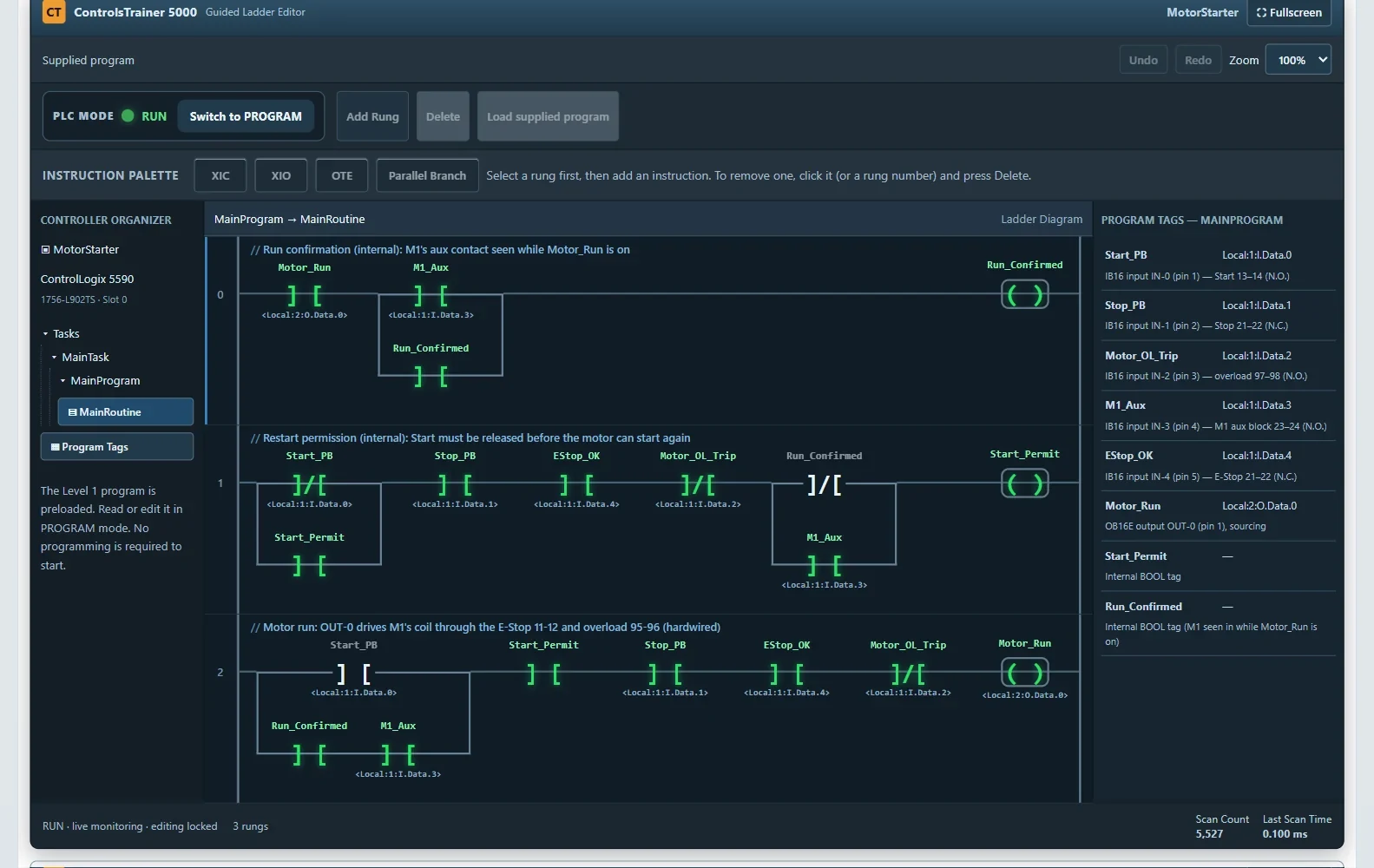
Free lesson · Level 1
Follow the work order through isolation, control wiring, program reading, and a working pump. Connect the field devices to the PLC and see how the inputs, permissives, and output work together.
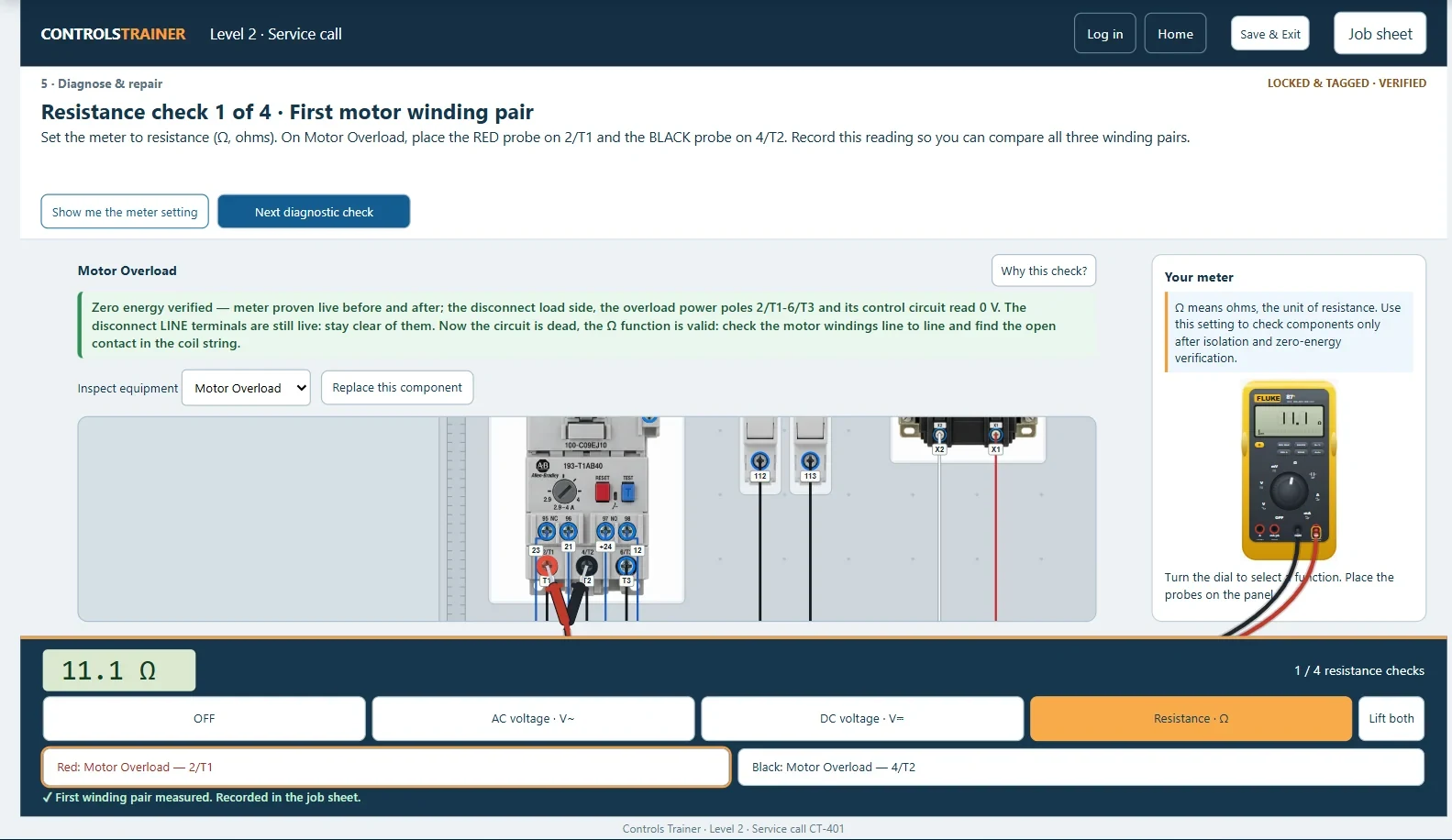
Free lesson · Level 2
Investigate a packaging conveyor that will not restart. Compare the operator alarm with the controller information and use measurements to find the failed component.
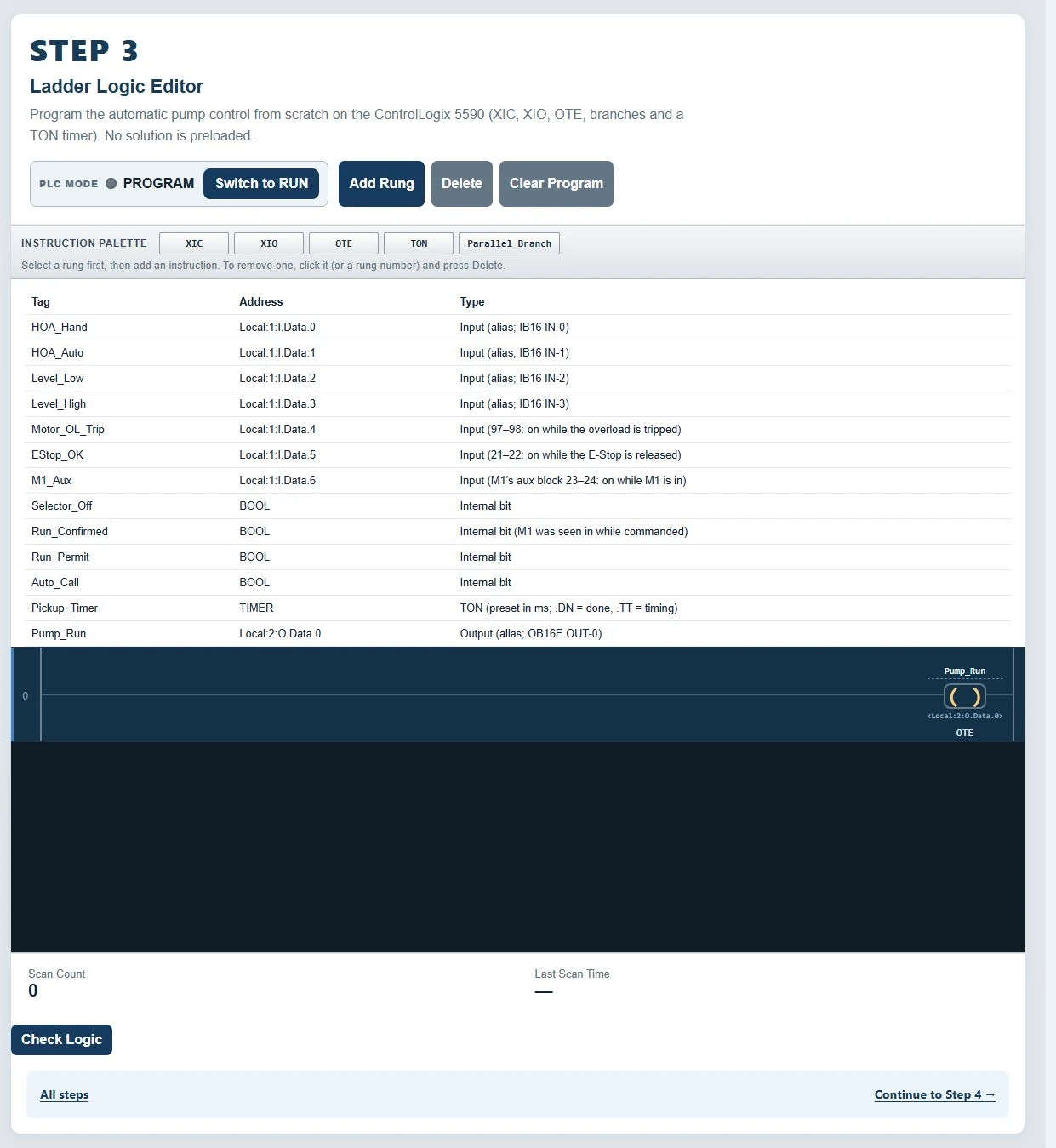
Full-access lesson · Level 3
Build the program yourself using the tank’s float switches, a HAND/OFF/AUTO selector, and timed run feedback. No solution is preloaded.
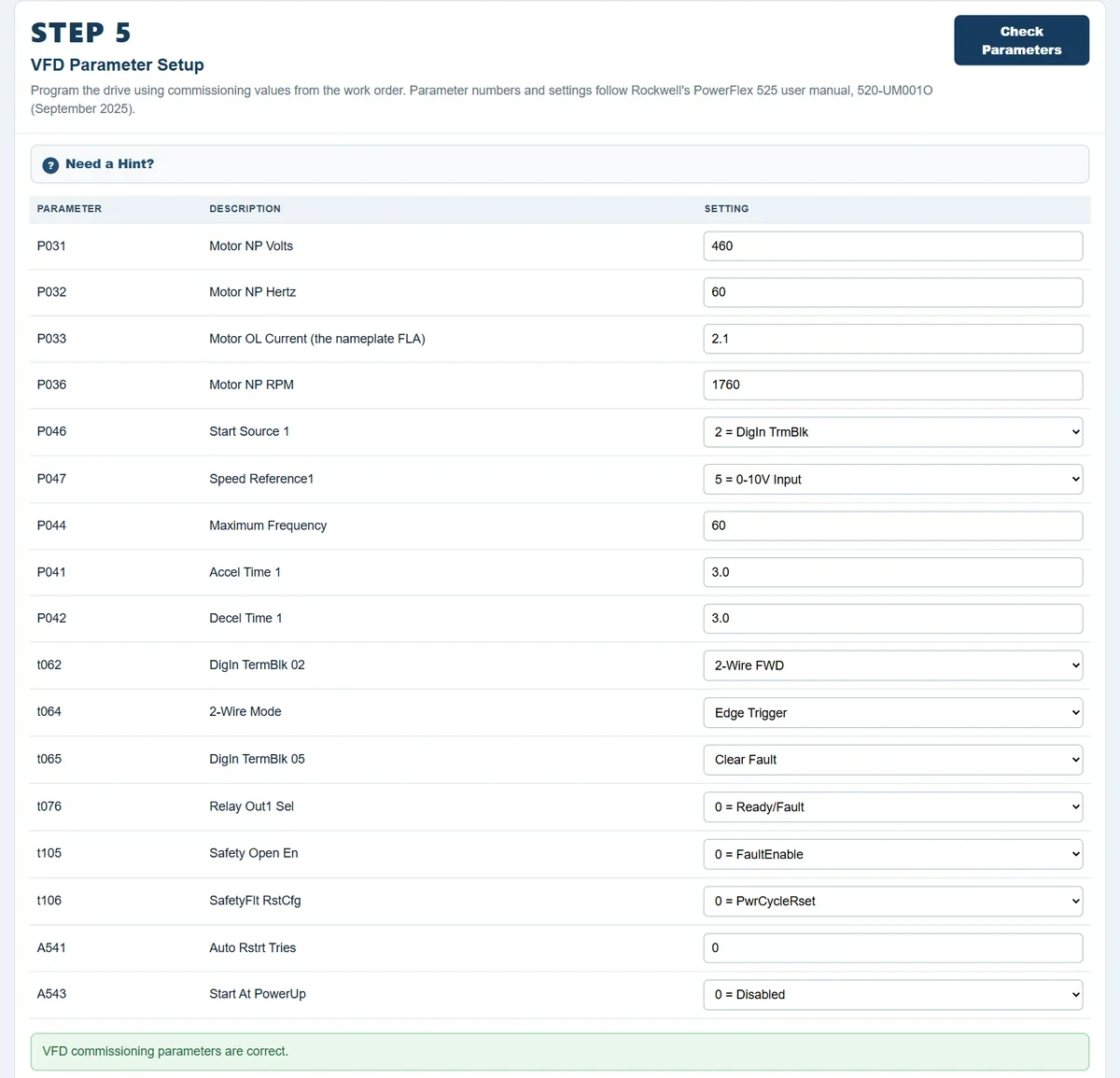
Full-access lesson · Level 4
Commission a simulated PowerFlex 525. Enter the motor data, configure the command sources, wire the drive controls, and prove the conveyor responds.
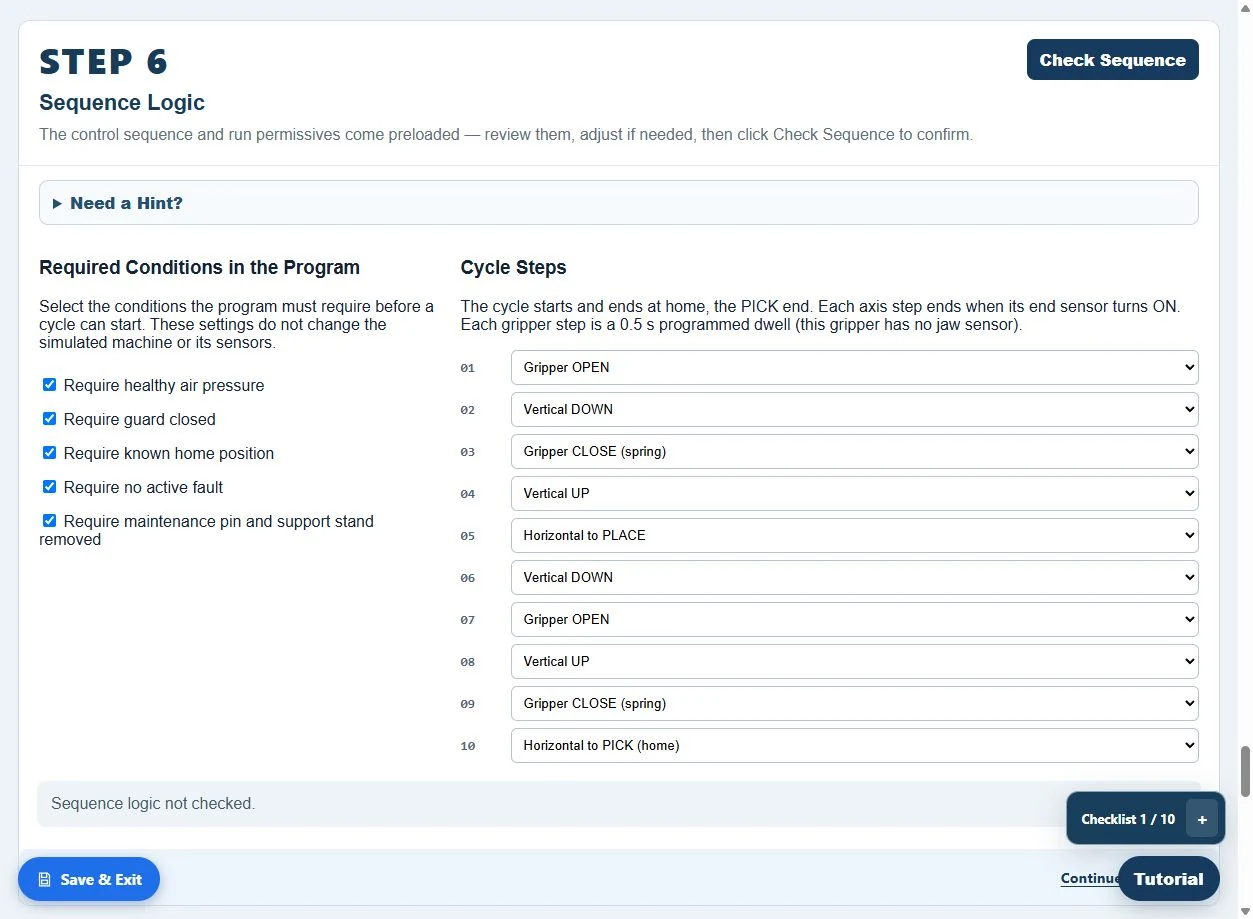
Full-access lesson · Level 5
Select valves, cylinders, a gripper, and sensors. Connect the pneumatic and electrical controls, then review the supplied machine sequence.
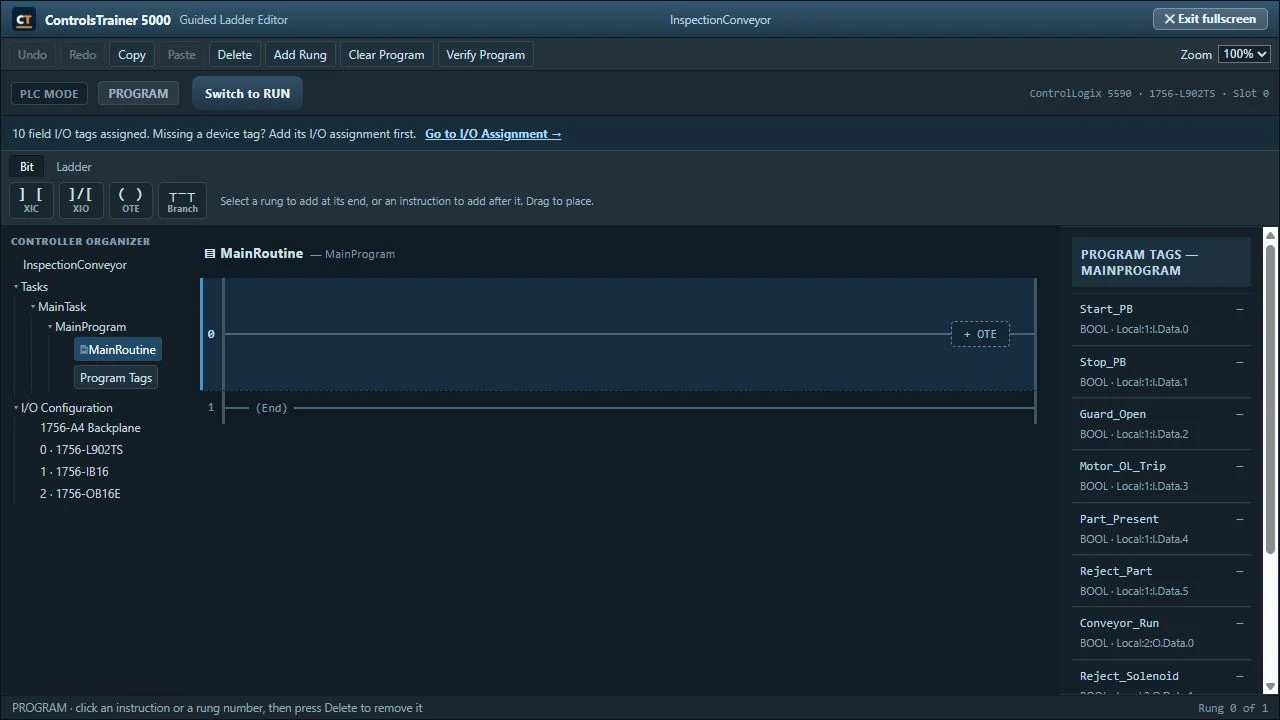
Full-access lesson · Level 6
Choose the hardware, assign the I/O, wire the conveyor, and write the inspection and rejection logic. This is a design job with a specification to meet.
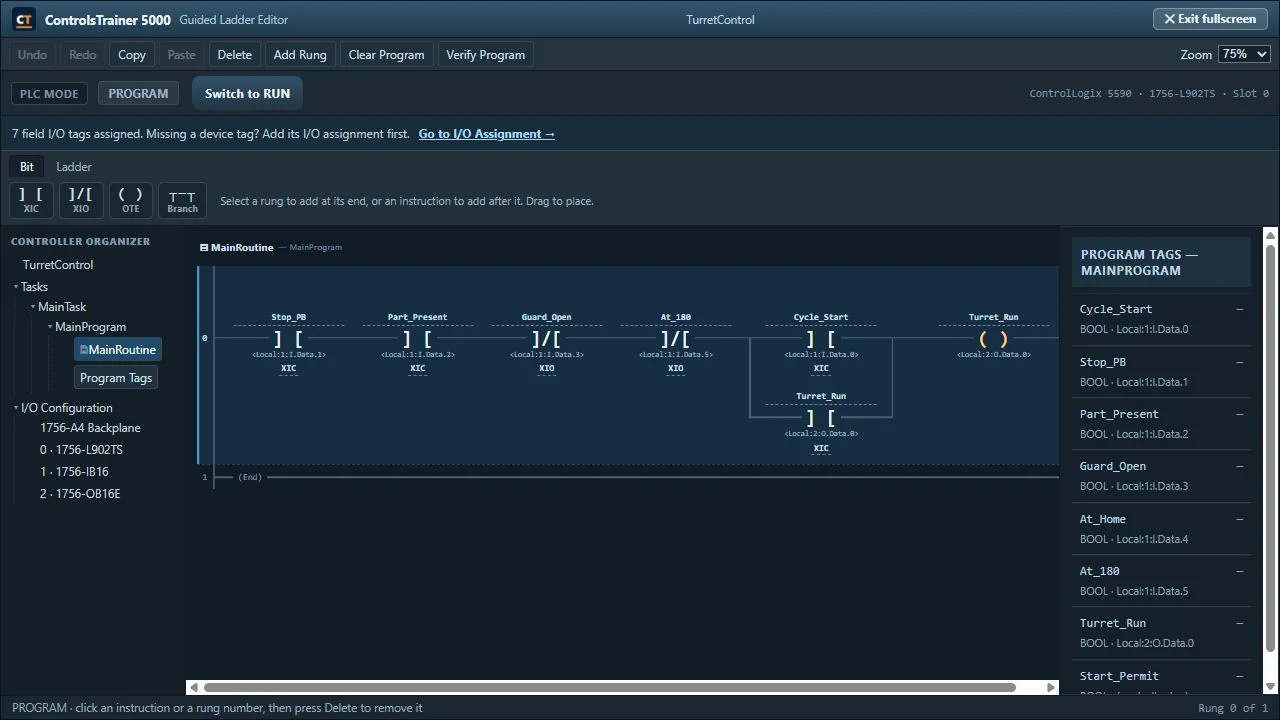
Full-access lesson · Level 7
Build an indexing fixture from the work order. Use part, position, and operating-condition inputs to control a 180-degree move and its stopping point.
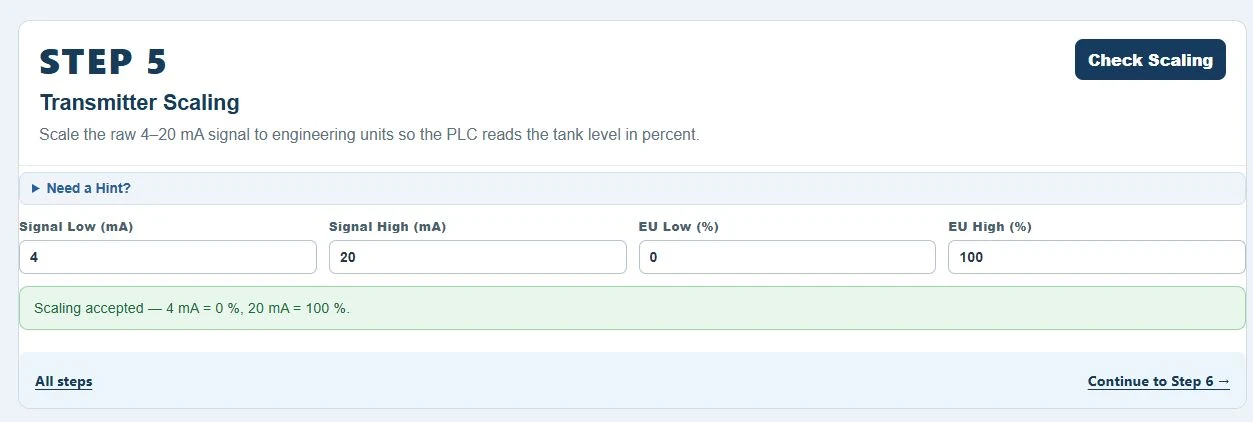
Full-access lesson · Level 8
Commission a 4–20 mA surge-tank level loop. Wire the instruments, scale the transmitter, configure proportional control and alarms, and review the supplied supervisory routines.
Full-access lesson · Level 9
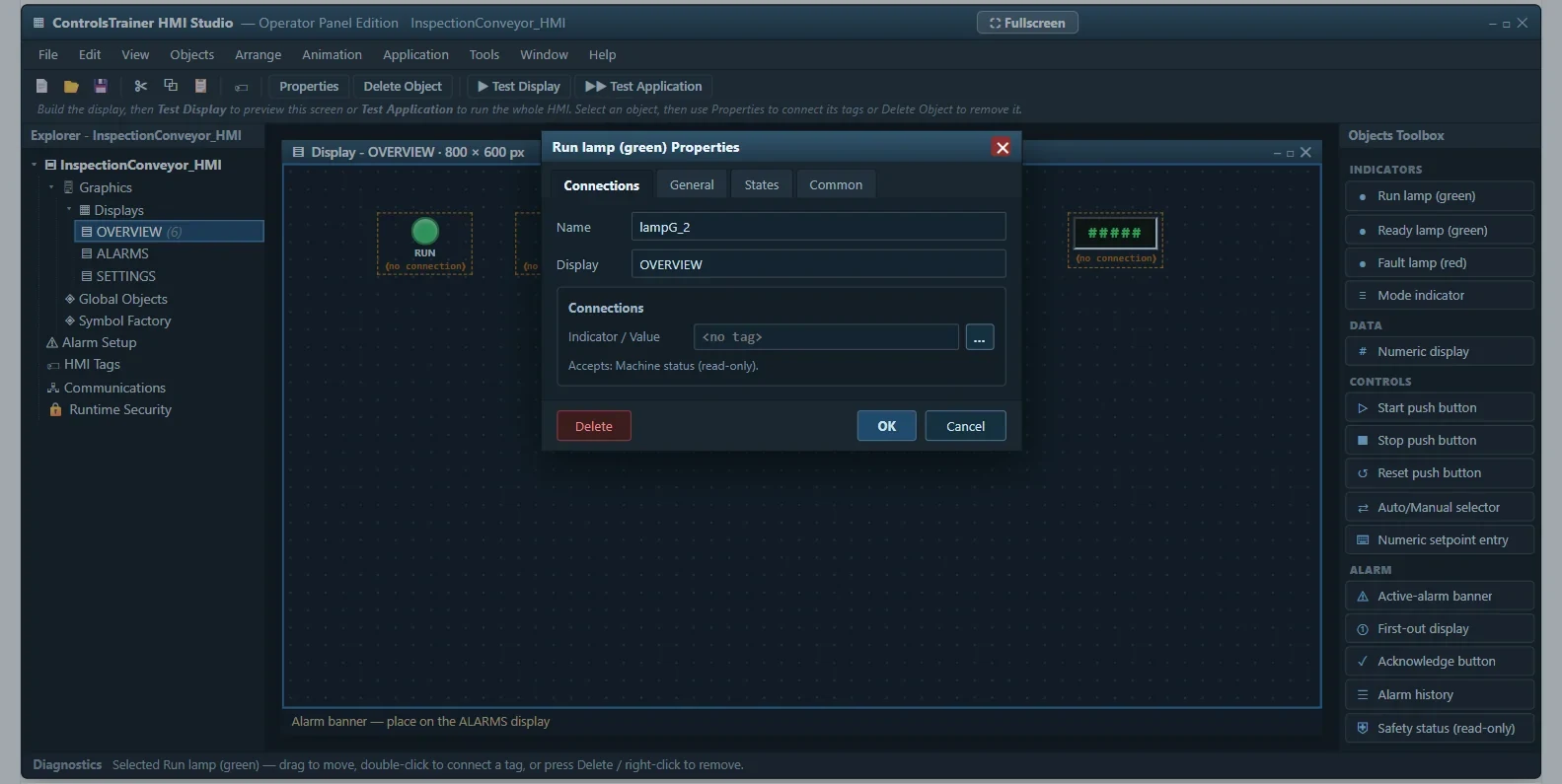
Start an operator interface in HMI Studio. Place objects, bind tags, configure alarms and operator security, then connect the application to the PLC.
Full-access lesson · Level 10
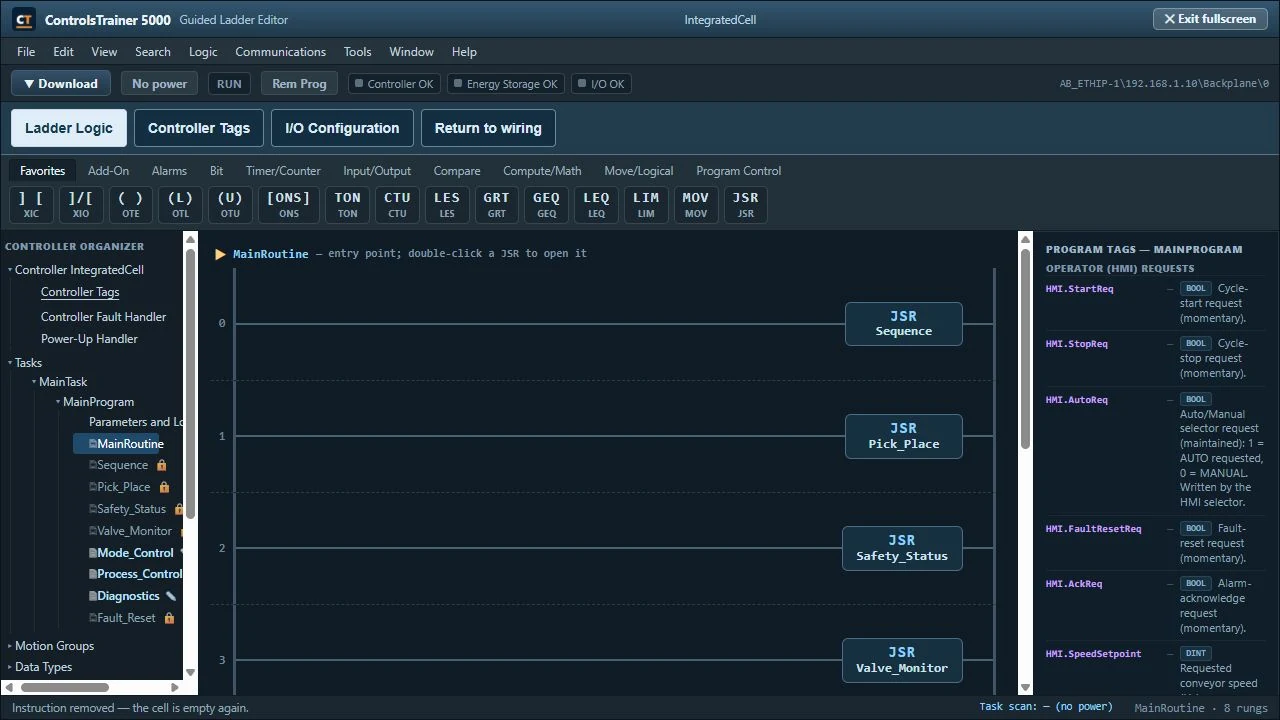
Integrate a fill, cap, inspect, and reject cell. Work across the program, network, analog instrument, drive, pneumatics, and operator interface.
Some lessons supply the PLC program for you to read or commission; others ask you to develop the logic. The descriptions show what you do in each one.
Start here
Level 1 guides you through the starter, the supplied ladder, and the pump test. Level 2 gives you a troubleshooting service call.
Inside the training
These are the actual tools you use in the lessons. Enlarge any screenshot to take a closer look.
Use contacts, branches, coils, and timers in lessons that ask you to program from requirements. Connect your instructions to the machine’s inputs and outputs, then test the behavior.
Write your own logic in Levels 3, 6, and 7.
Place HMI objects, configure their properties, bind PLC tags, and build alarm handling. Test what an operator can request and what the controller reports back.
Develop the HMI and its PLC interface in Level 9.
Explore the main routine and its JSR calls. Review the supplied sequences, complete Mode_Control, Process_Control, and Diagnostics, and build seven HMI displays.
Integrate the complete production cell in Level 10.
Beyond digital I/O
Configure motor data, command sources, and a 0–10 V speed reference in Level 4. Work with 4–20 mA scaling, proportional control, and alarms in Level 8.
Explore drive commissioning →Make your practice count
Work at your own pace. Use the lessons’ save and resume features, revisit the instructions, and keep practicing.
Sign in with a confirmed account to record completion and receive a printable certificate after you meet a level’s requirements.
How certificate verification works →Practice the controls work you want to understand, from ladder reading to HMI integration.
Company tools add assignments, due dates, progress reports, and a skills matrix.
Certificates record training completion. They do not replace practical evaluation, professional certification, or employer authorization to work on real equipment.
Built around the work
Begin with guided wiring and program reading, then progress to your own logic.
Connect your field experience to PLC I/O, drive parameters, and troubleshooting.
Use repeatable machine exercises alongside your hands-on instruction and site procedures.
Choose how you train
Open Levels 1 and 2 without an account. Get familiar with the simulated panel and troubleshooting tools.
Start Level 1 free →No credit card needed.Individual and company access includes the advanced PLC, HMI, VFD, and production-cell lessons.
Compare access plans →See the Plans page for current pricing and features.Explore a company pilot with the full program and manager tools before deciding on a team plan.
Explore the free pilot →For companies and training organizations.Before your first project
Want a closer look at the tools? Visit the PLC Simulator page.
No physical PLC, trainer kit, or vendor software is required. The lessons and training editors run in a modern browser. A desktop or laptop with a mouse is recommended for wiring and programming.
Both. The foundations introduce supplied logic. Levels 3, 6, and 7 ask you to develop programs from requirements. Advanced lessons add HMI interface logic and structured routines. Other levels focus on commissioning or troubleshooting with supplied programs.
No. ControlsTrainer 5000 and HMI Studio are the site’s own training editors. The lessons use ControlLogix-style equipment, but the platform is independent of the manufacturers and cannot download programs to a physical PLC. Programming is ladder logic, not Structured Text.
It is self-paced. The time you need depends on your experience and how much practice you do. Follow the work order, use the lesson guidance, and return to unfinished work with save and resume.
Levels 1 and 2 are free to try without an account. Signed-in learners normally progress by passing the previous level; available access can also depend on your account or organization. Check My Training for your current access.
No. It records completion of a simulated training level. It is not an accredited credential, a professional license, OSHA certification, or authorization to work on equipment. Real work still requires your employer’s procedures, practical evaluation, and authorization.
Your first machine project is ready
Try Level 1 free and see how the work fits together.
Start Level 1 free →Independent training platform. Allen-Bradley, ControlLogix, PowerFlex, PanelView, Guardmaster, RSLogix, and Studio 5000 Logix Designer are trademarks of Rockwell Automation, Inc. Fluke, Festo, and SMC are trademarks of their respective owners. Names identify equipment modeled in the lessons. Controls Trainer is not affiliated with, sponsored by, or endorsed by these manufacturers.